📊Analytic Guide📉
Hello, my Sun Petals!
Below is a 10-Step process for connecting Google Analytics to FIU MyWeb.
This Analytics reports will enable you to track and monitor reader’s activity on your site.
Step 1:
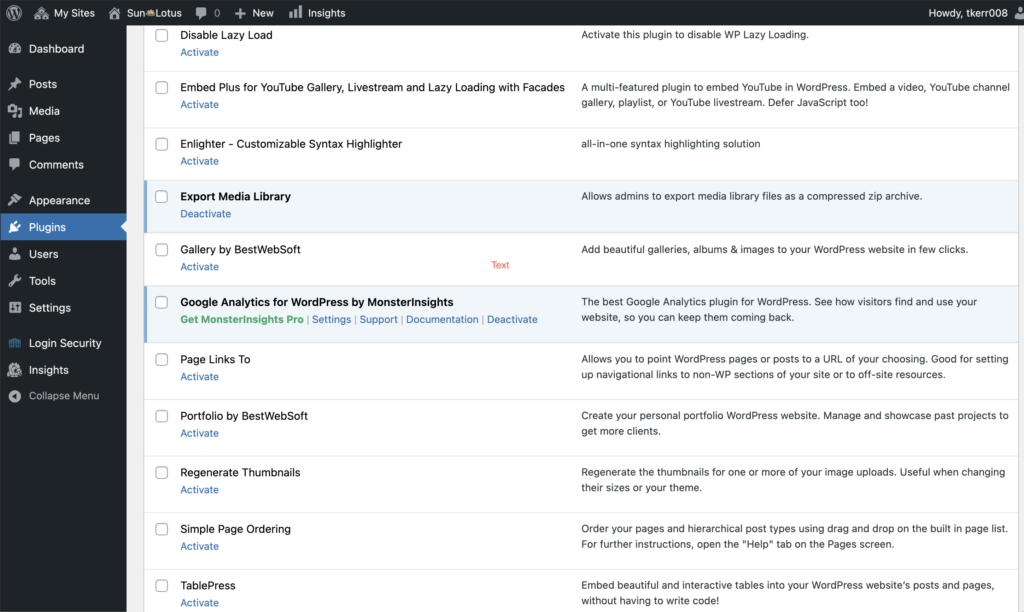
- 📌 Click Plugins, on MyWeb Dashboard
2. 📌 Scroll down until you see Google Analytics for WordPress.
Step 2:
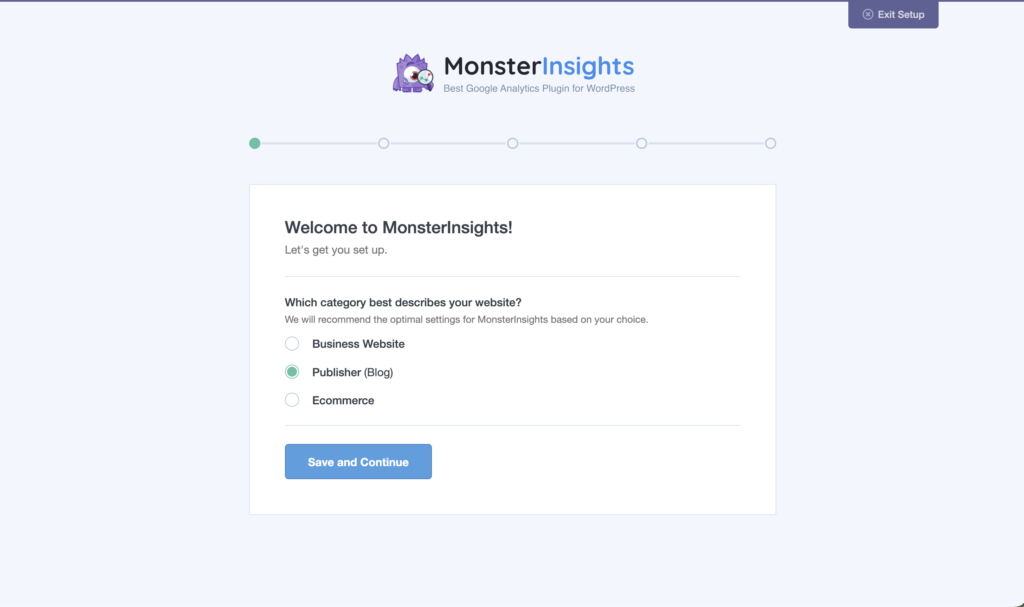
3. 📌 Click Launch the Wizard. Select the category that best fits your website.

Step 3:
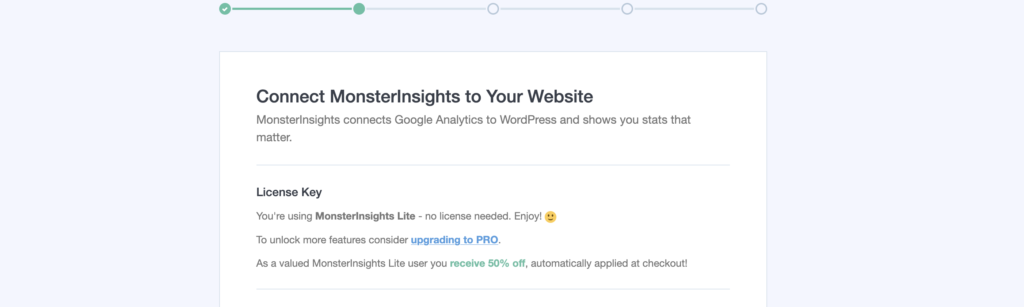
4. 📌 Connect MonsterInsights to your Google Analytics account.
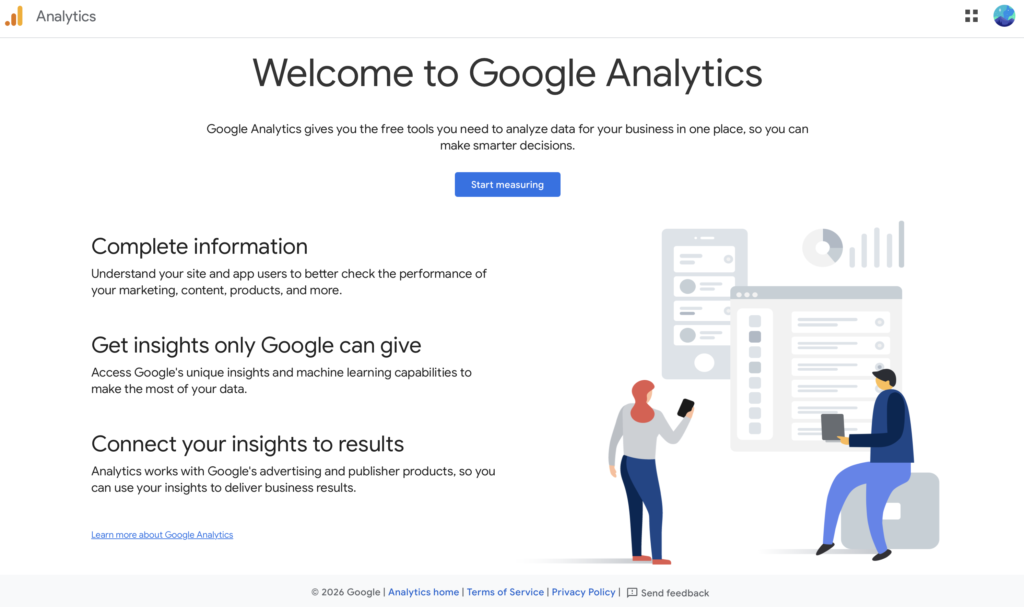
5. 📌 Note: If you do not have a Google Analytics account, that fine!!! You can set it up now!
Step 4:
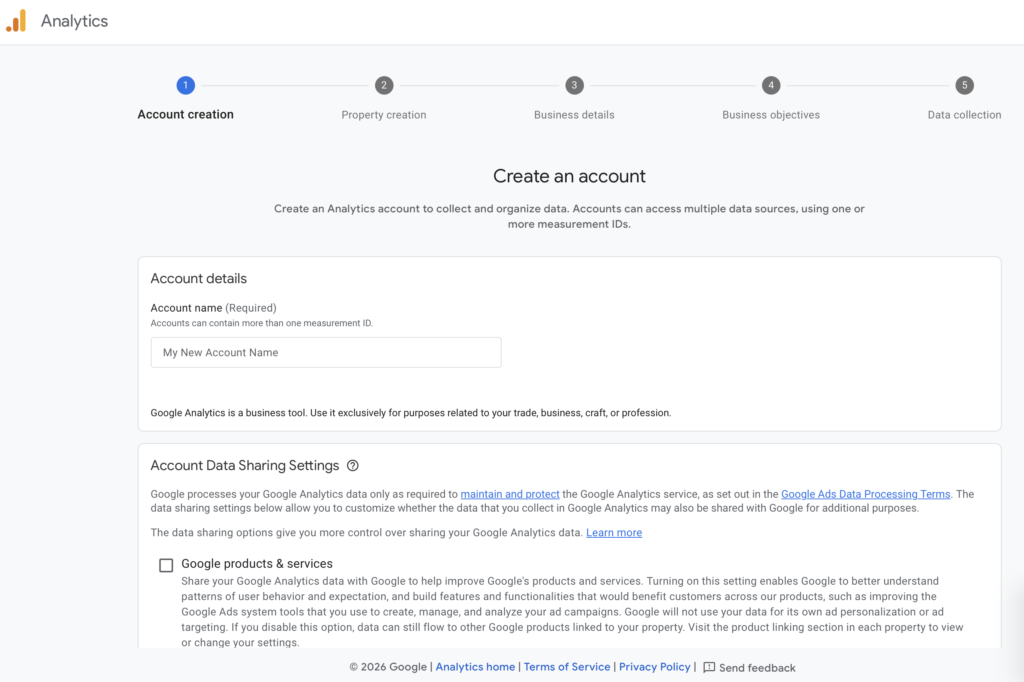
6. 📌 Go on the Google Analytics site, and click Start measuring.
7. 📌 Fill out each section in order to complete your account.
Great!!
8. Once your account is made, go back to MonsterInsights to finish connecting.
Step 5:
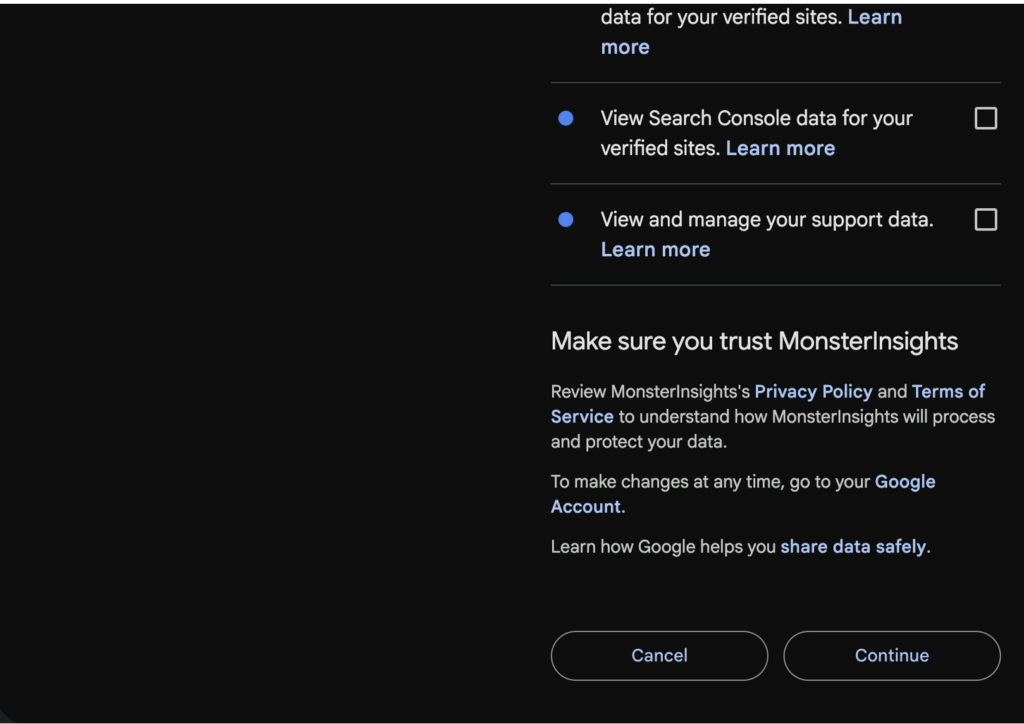
9. 📌 Grant permission for MonsterInsights to connect to your Google Analytics account.
Step 6:
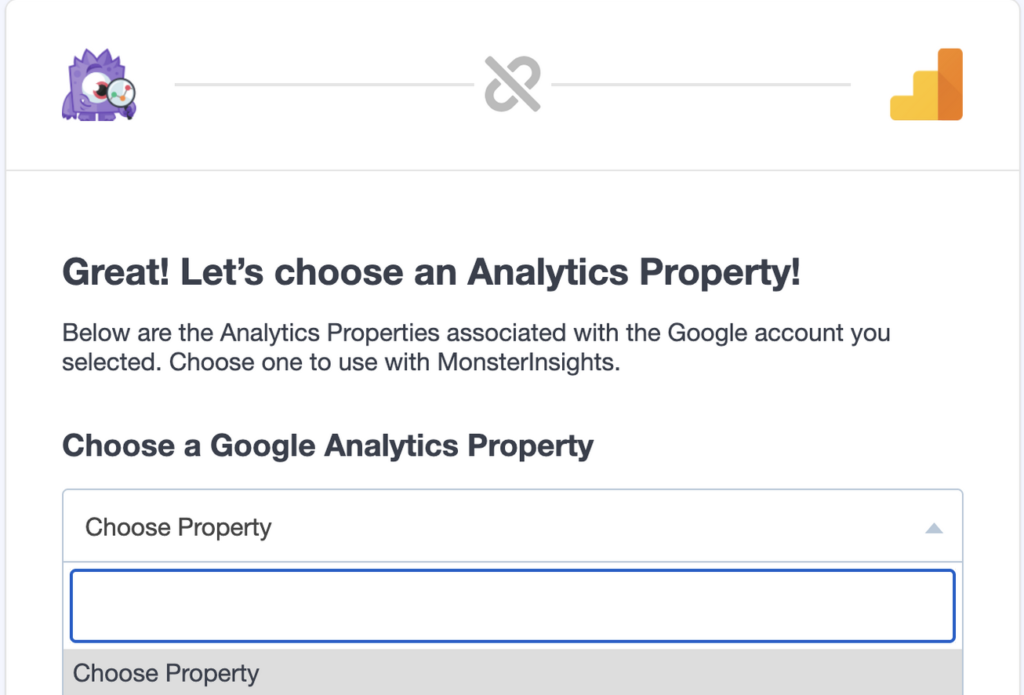
10. 📌 Click your Google Analytics Property (your website name) on the account.
Amazing!!! 😍😍
Step 7:
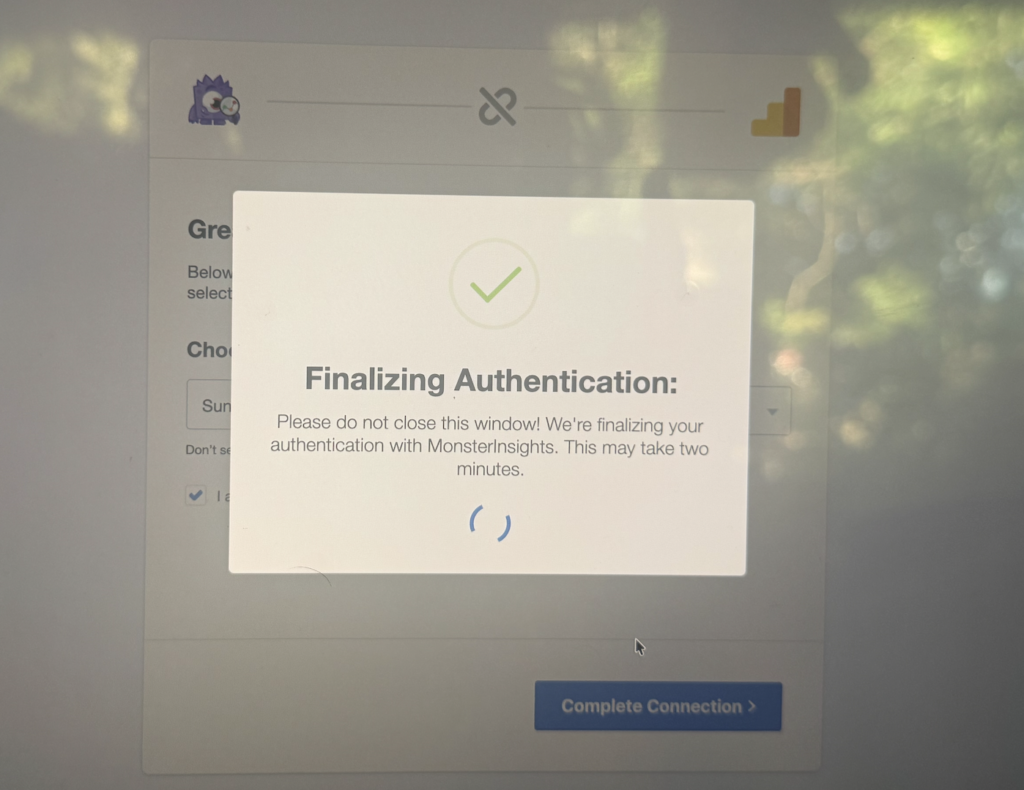
11. 📌 Next Finalizing Authentication will open. Do not leave the screen.
Step 8:
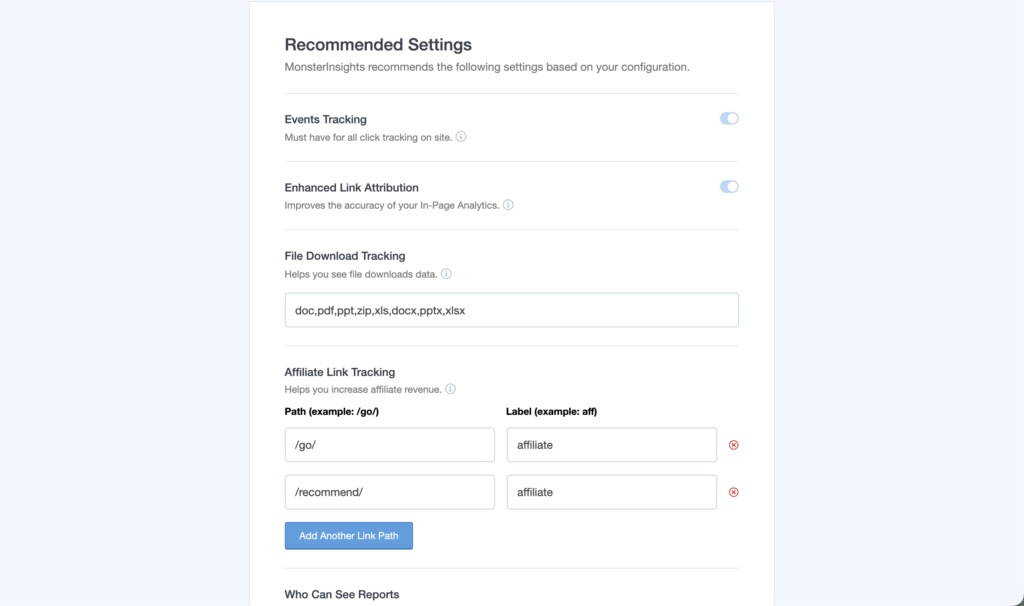
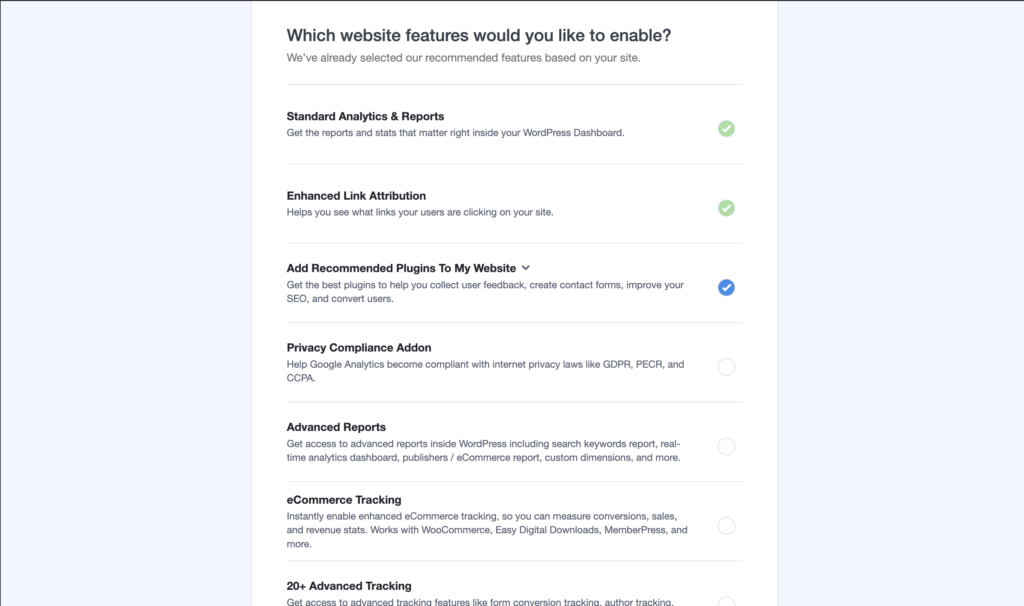
12. 📌 Make any changes to the recommended settings, click Save and Continue.
Step 9:
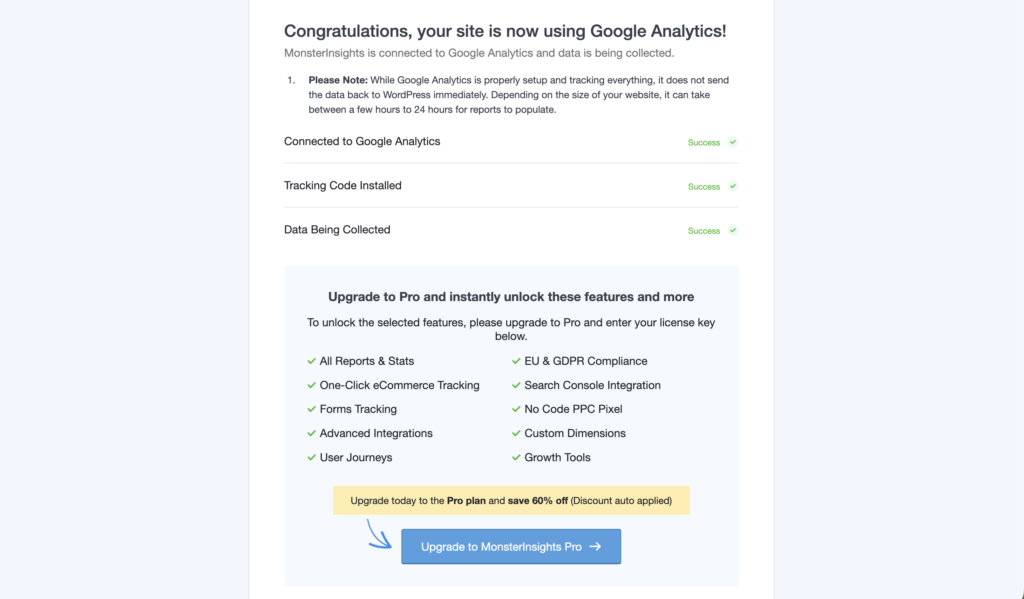
13. 📌 Great Job! Your site is linked to your Google Analytics.
14. 📌 Below click, Complete Setup without Upgrading.
Step 10:
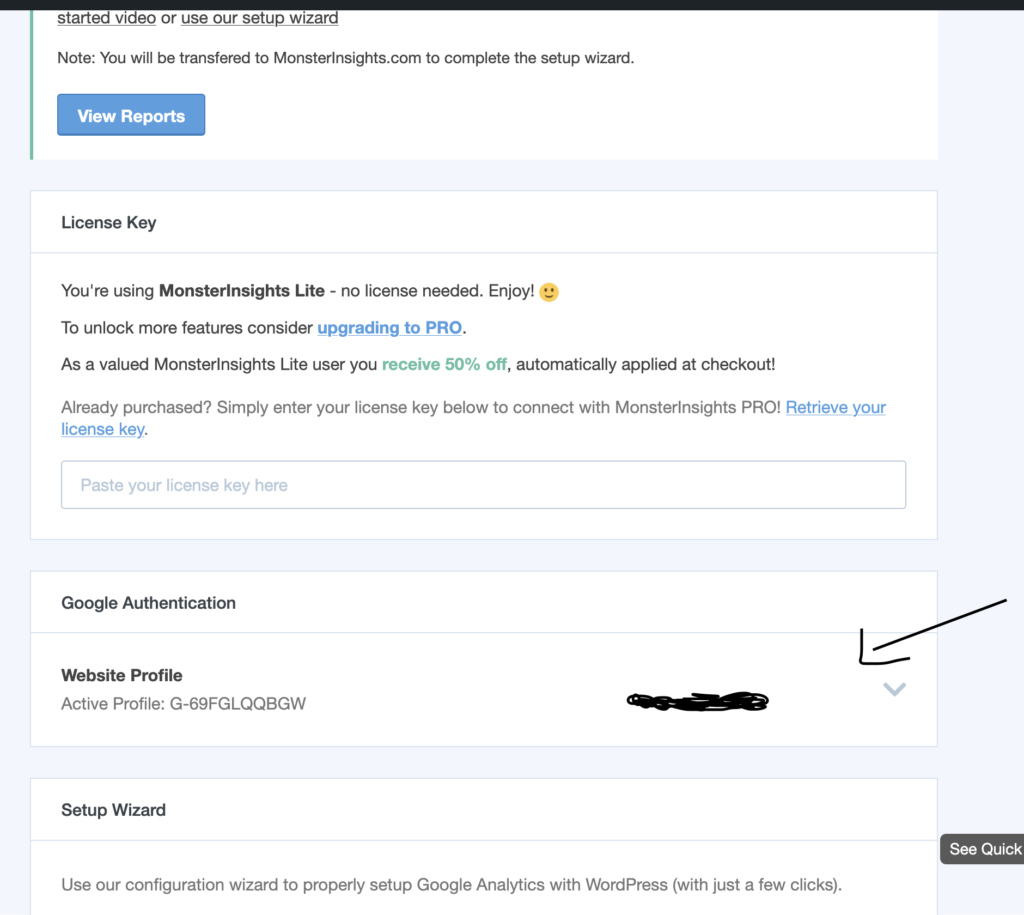
15. 📌 Click on Google Analytics or MonsterInsights accounts to make note of your Measurement ID!
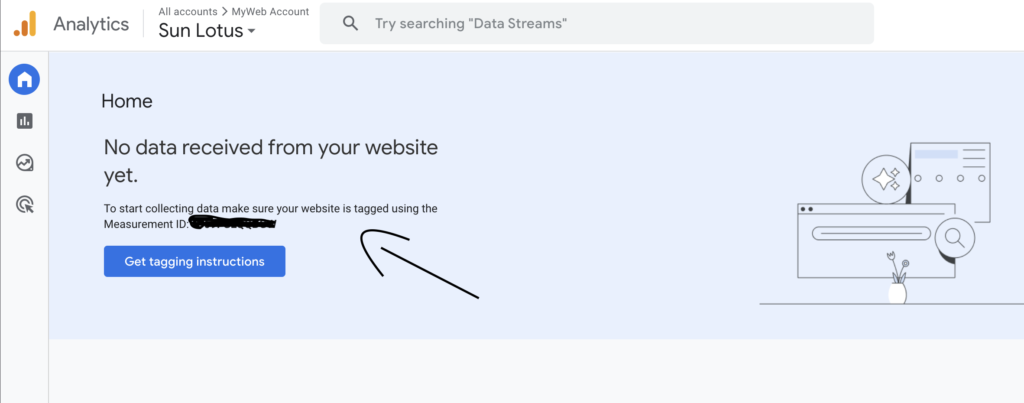
Thank you for following me along this step-by-step set up of analytics on WordPress!
If you have any questions, please leave a comment below!
Support:
Bye!!!

Leave a Reply