Analytics Instructions
If you want to see how people are using your website, Google Analytics is a great tool. Follow these steps to connect it to your FIU MyWeb site.
Step 1: Log in to your site
Go to your FIU MyWeb dashboard and log in.
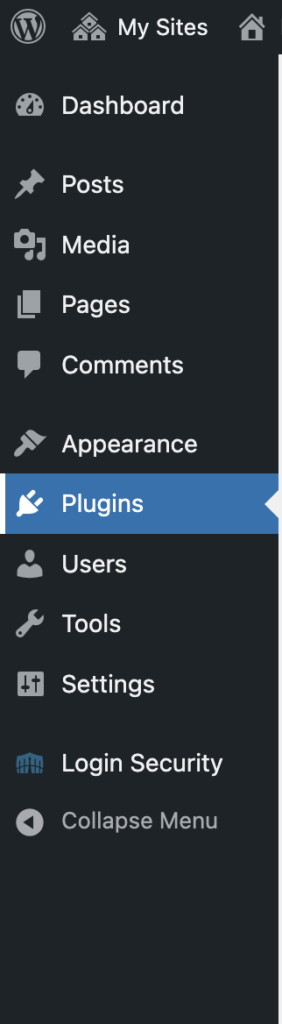
Step 2: Open Plugins
On the left menu, click Plugins.
Step 3: Activate MonsterInsights
Find Google Analytics for WordPress by MonsterInsights and click Activate.

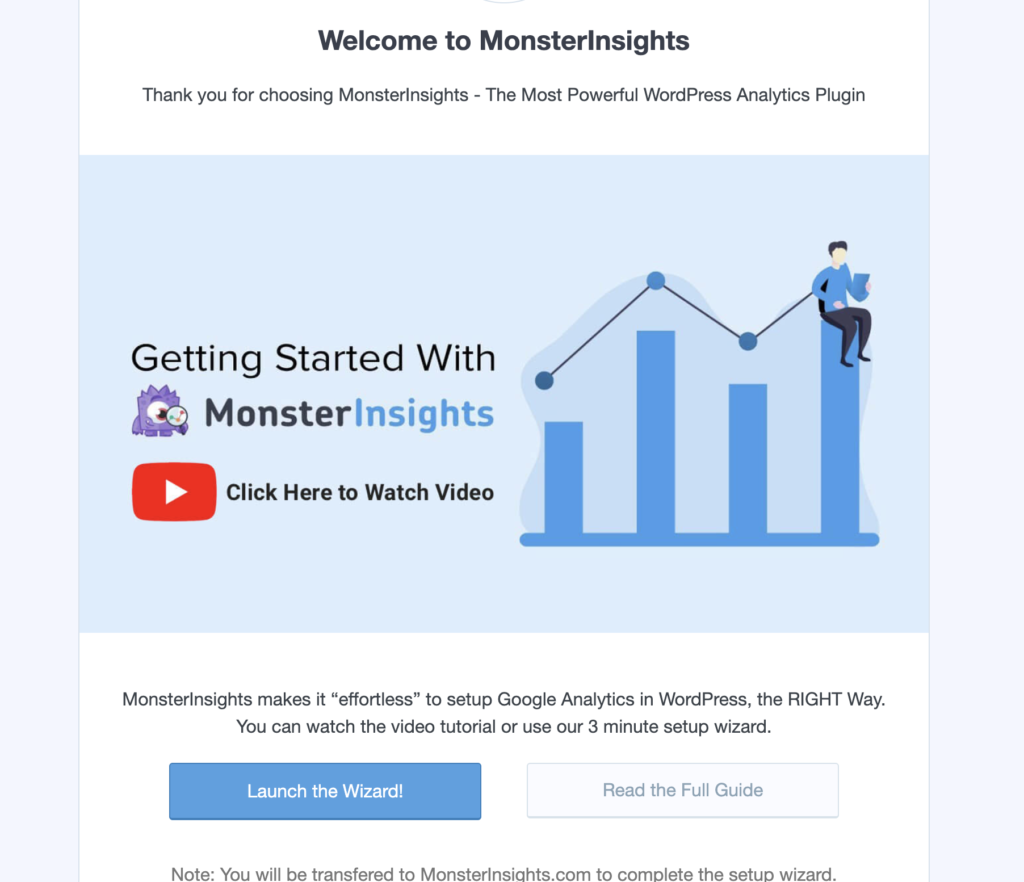
Step 4: Start the setup
After activating, you’ll be taken to the setup page. Click Launch Setup Wizard (you can skip the video if you want).
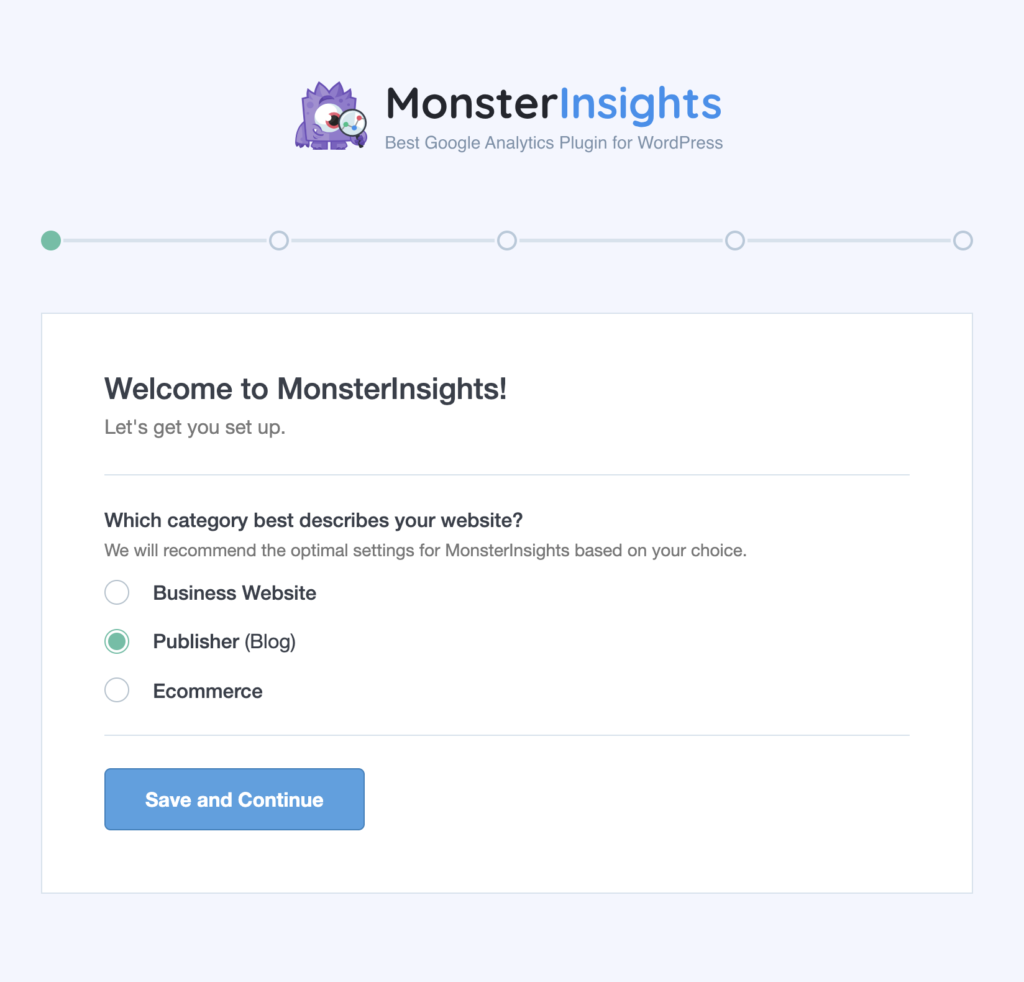
Step 5: Choose your site type
Select the option that best describes your site. For most students, this will be Blog or Business.
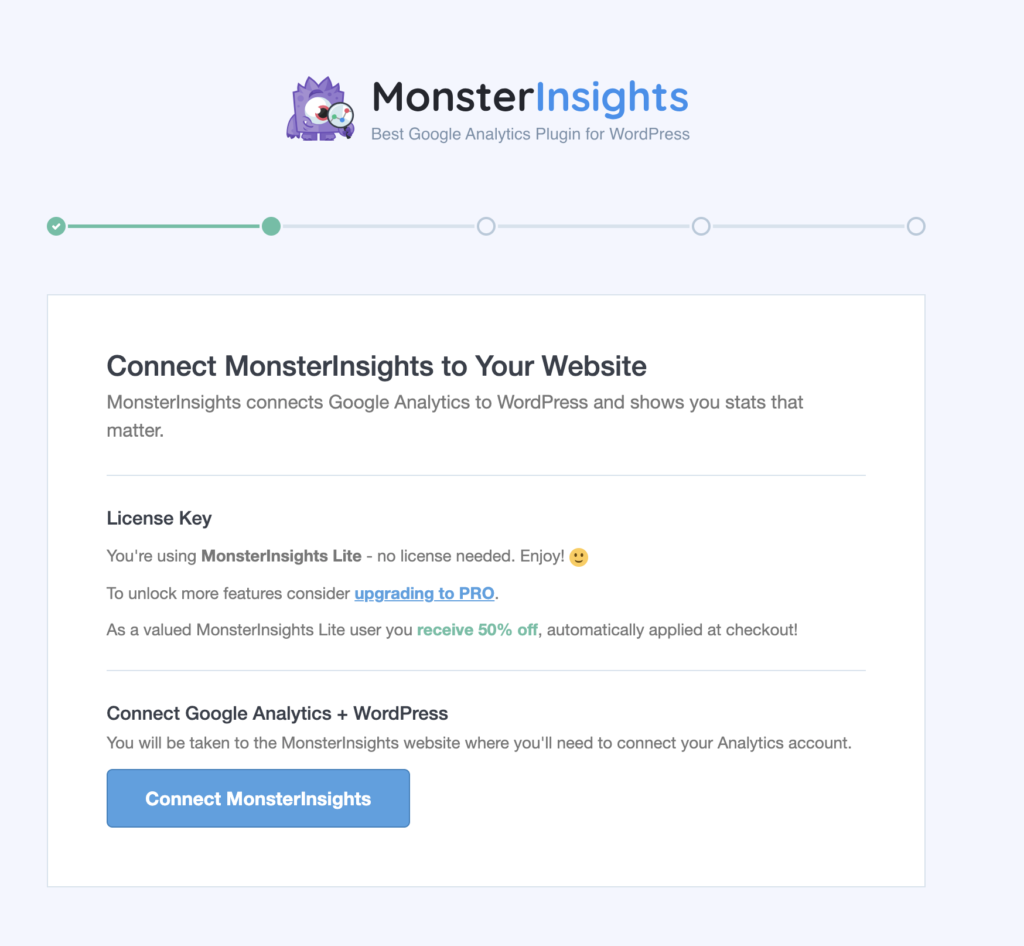
Step 6: Connect your Google account
Click Connect MonsterInsights.
Step 7: Sign in
Select your Google account and continue.
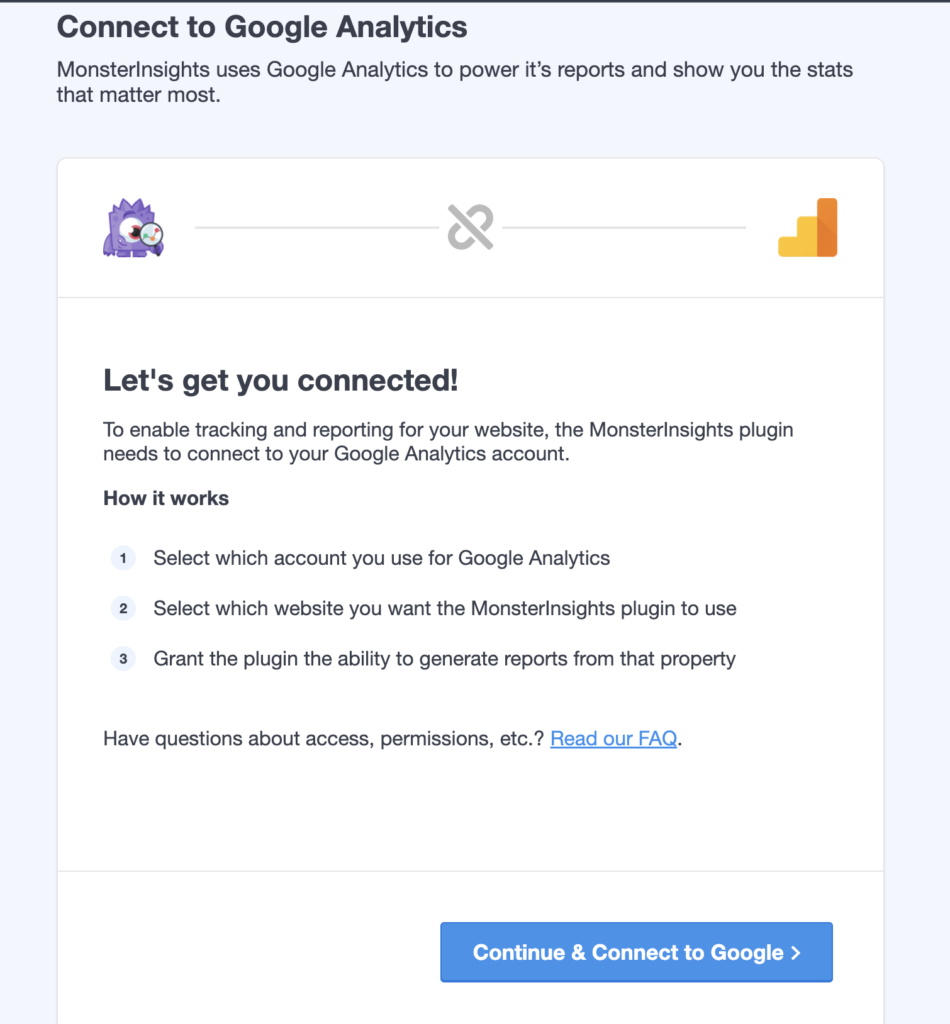
Step 8: Allow access
Click Allow so the plugin can connect to your Analytics account.
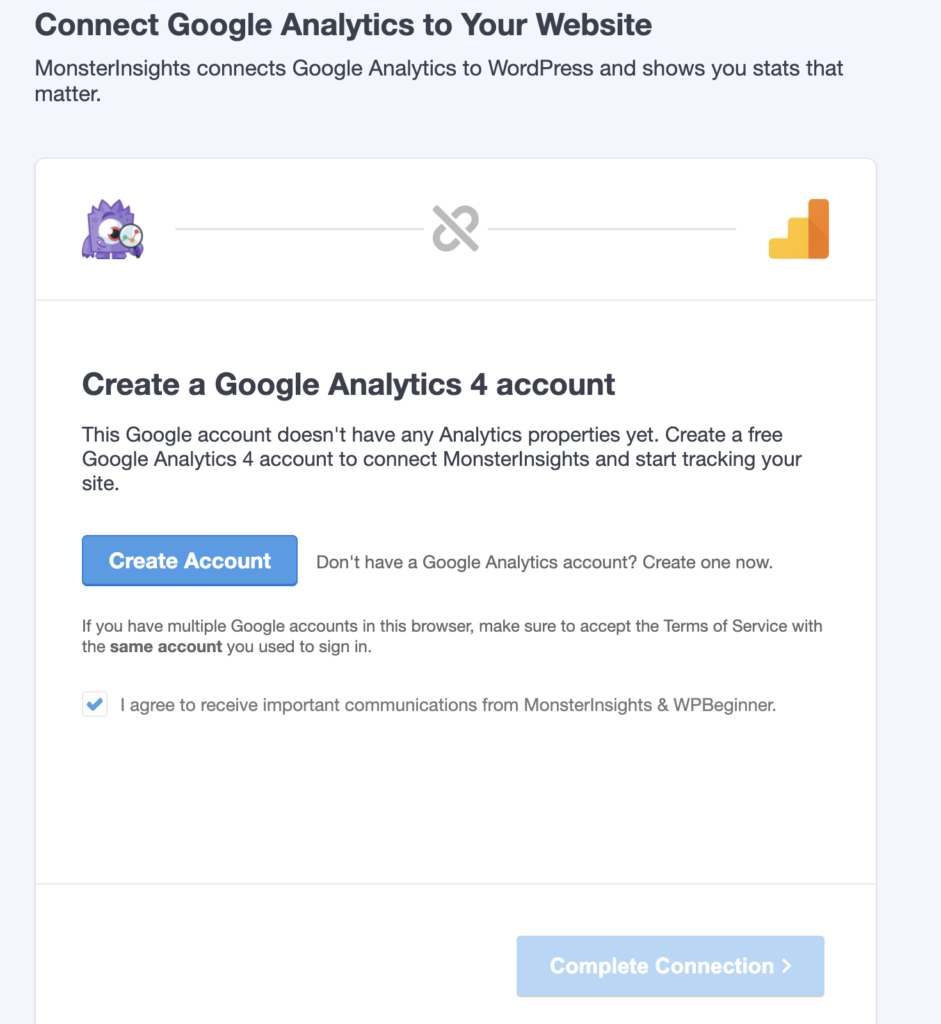
Step 9: Select your website
Choose your website from the list and click Complete Connection.
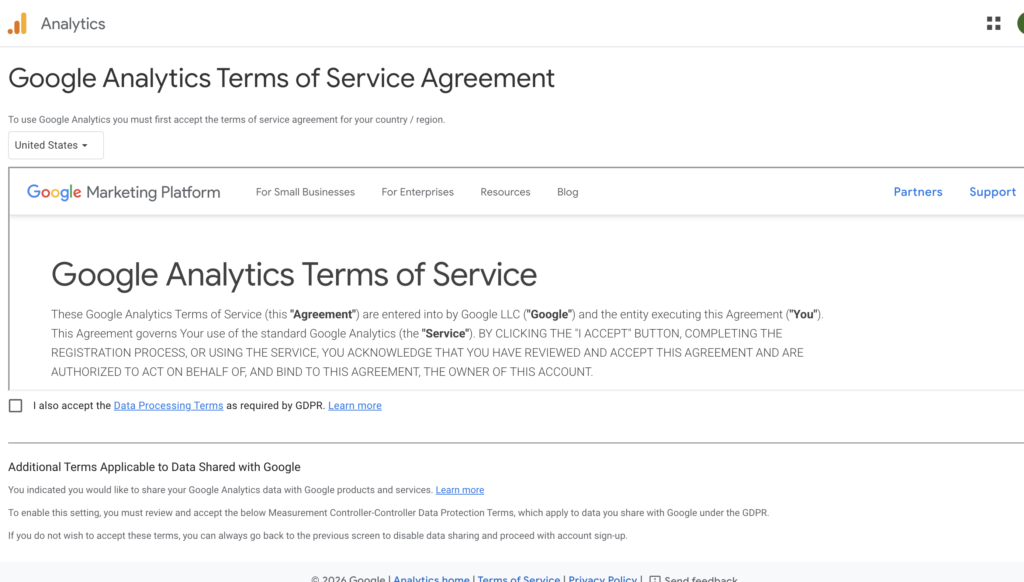
Step 10: Accept Terms of Service Agreement
Read carefully and accept all terms.
Leave the recommended settings as they are and continue.
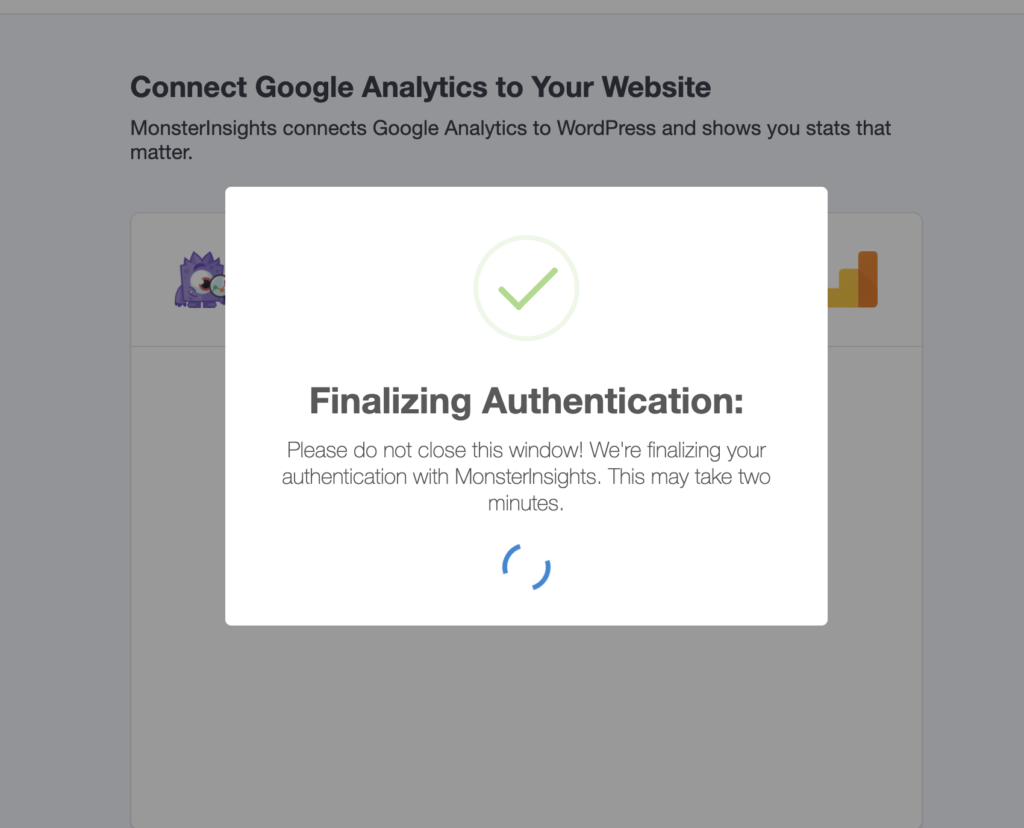
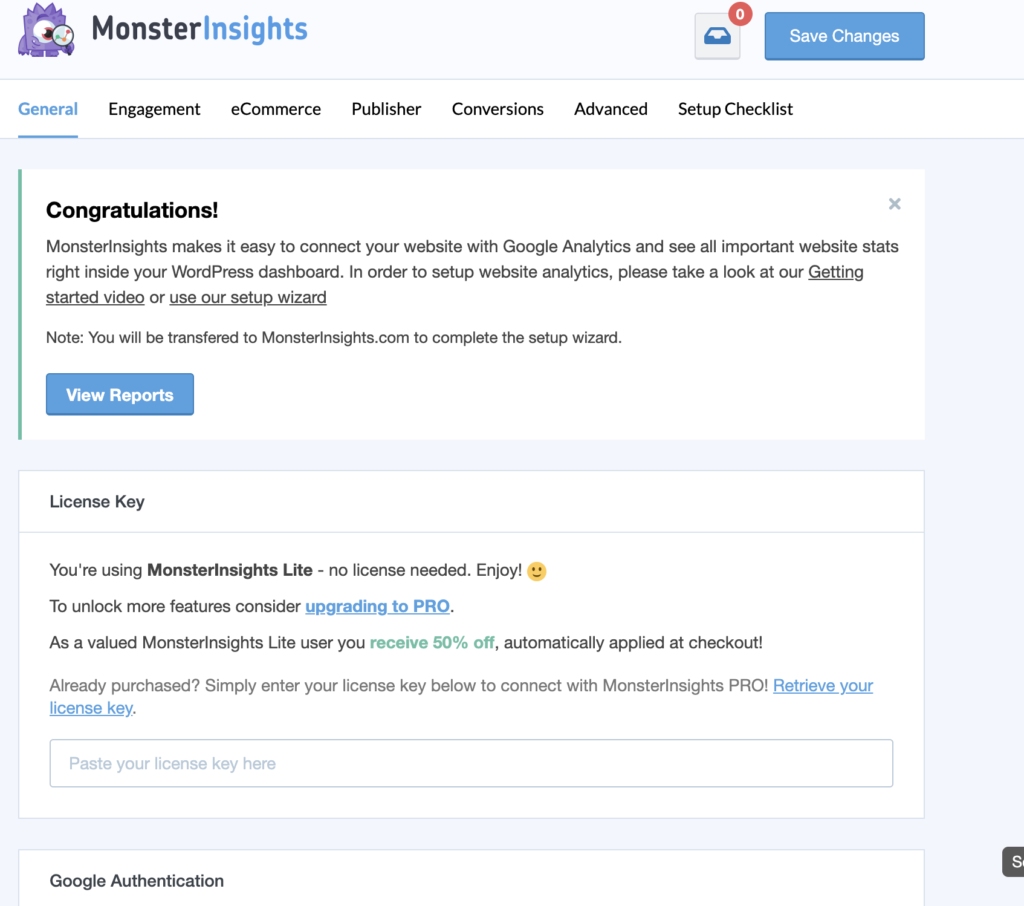
Step 11: Complete setup
If everything is set up correctly, you’ll see a confirmation that Google Analytics is connected.
You may be prompted to upgrade—if not, scroll down and click Complete Setup without Upgrading.
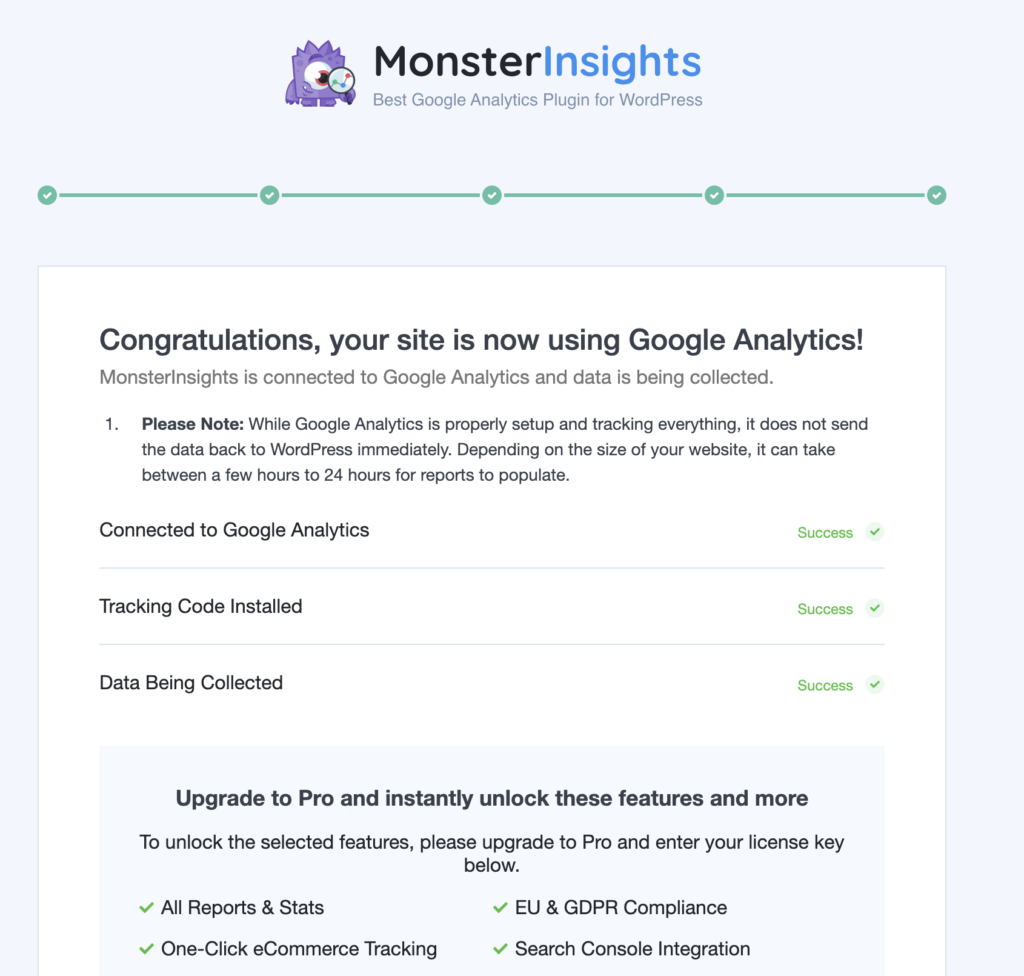
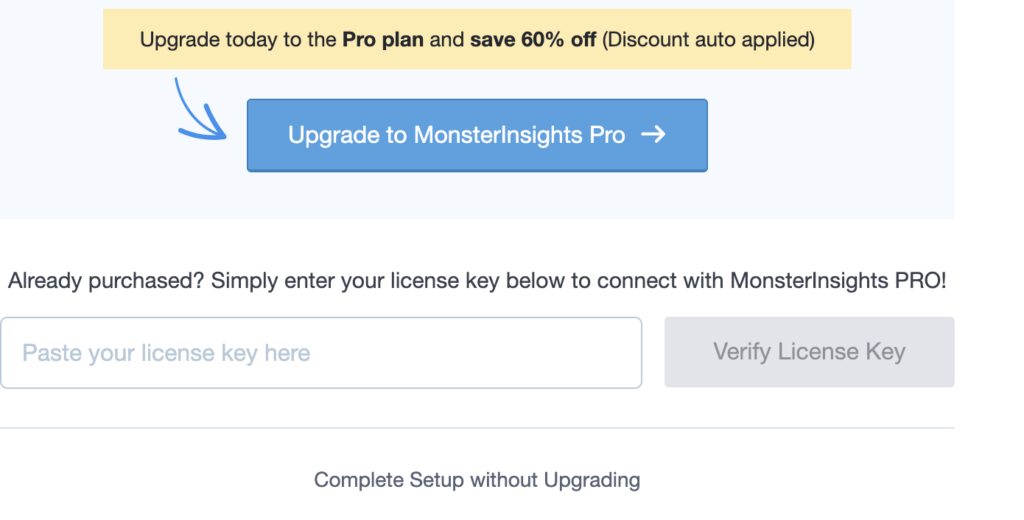
Step 13: View your analytics
You’ll be redirected back to your dashboard.
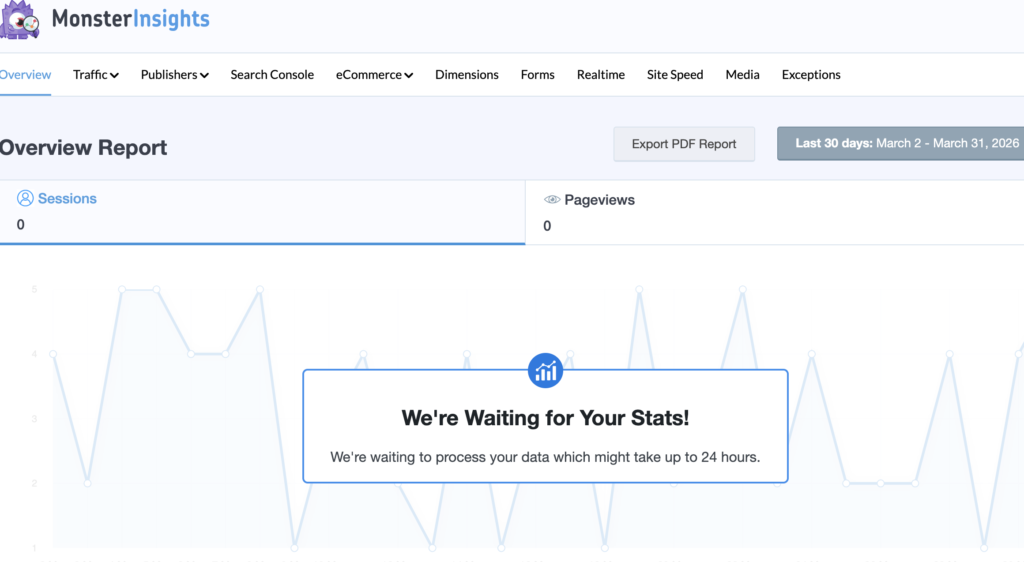
Click on the new Insights tab to start tracking your site’s analytics
You’re all set
It may take some time for data to appear, but once it does, you’ll be able to see how people are interacting with your site.