

Analytics are like a website’s lighthouse. They help track and understand several data points of user behavior. This information will prove helpful in making informed decisions to improve content and marketing strategies and, ultimately, increase the website’s chances of success.
To set up analytics in your FIU MyWeb site, follow these steps:
1- Go to the Plugins menu in your Dashboard:
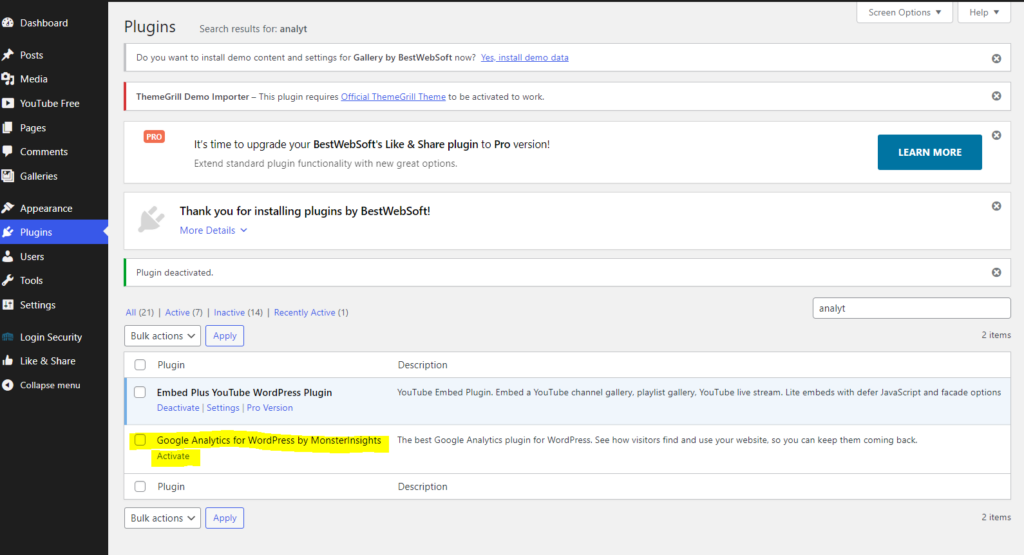
It will prompt you to follow the MonsterInsights installation wizard.
2- Select the category that best describes your site in the MonsterInssights wizard
3- Connect MonsterInsights to your site.
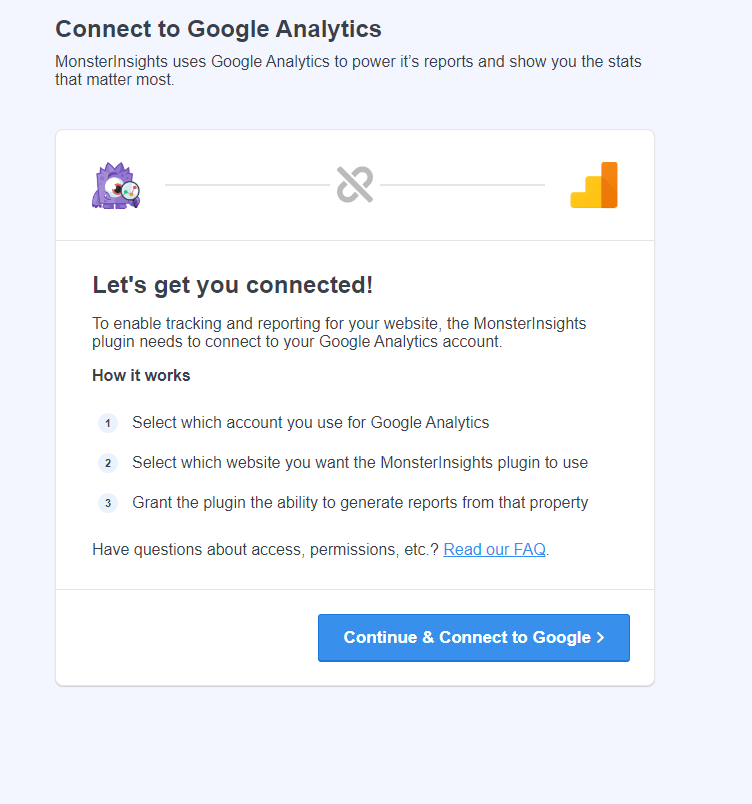
Follow the steps to connect your Google account to your site.
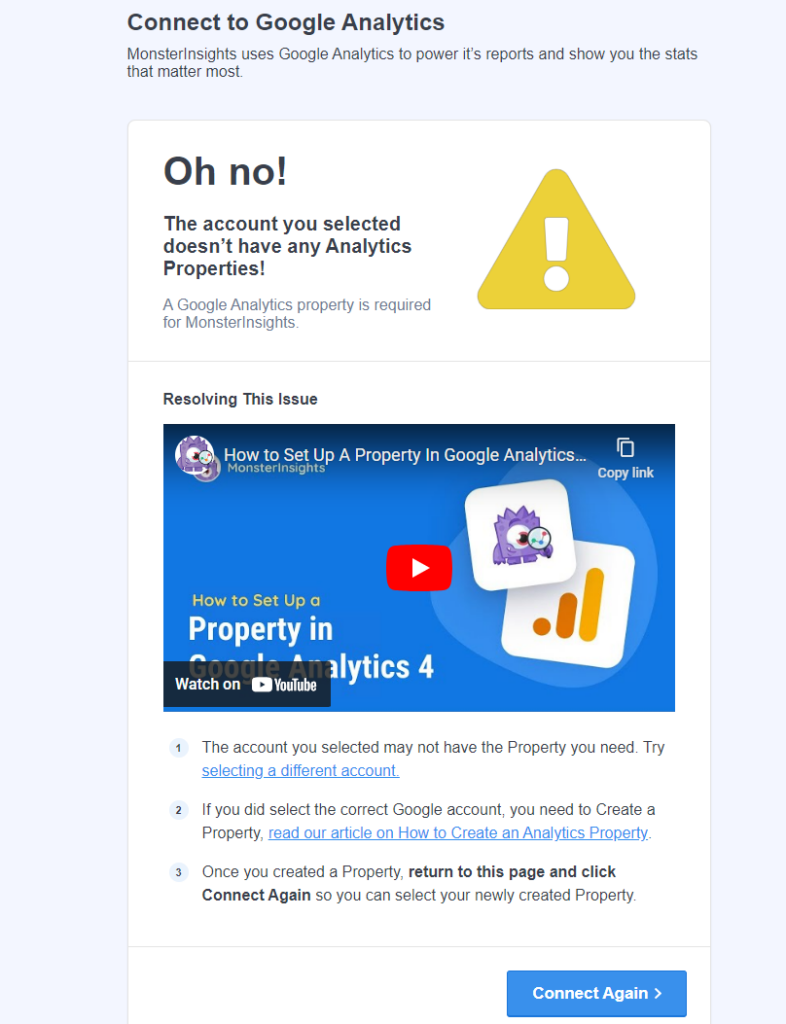
3.1-Watch the video tutorial about how to grant Analytics properties to your Google account if necessary.
Pay close attention during the setup of your Google account analytics properties. This step is vital to establish a clear path for your site in terms of date. Select the reports you consider relevant to your goals.
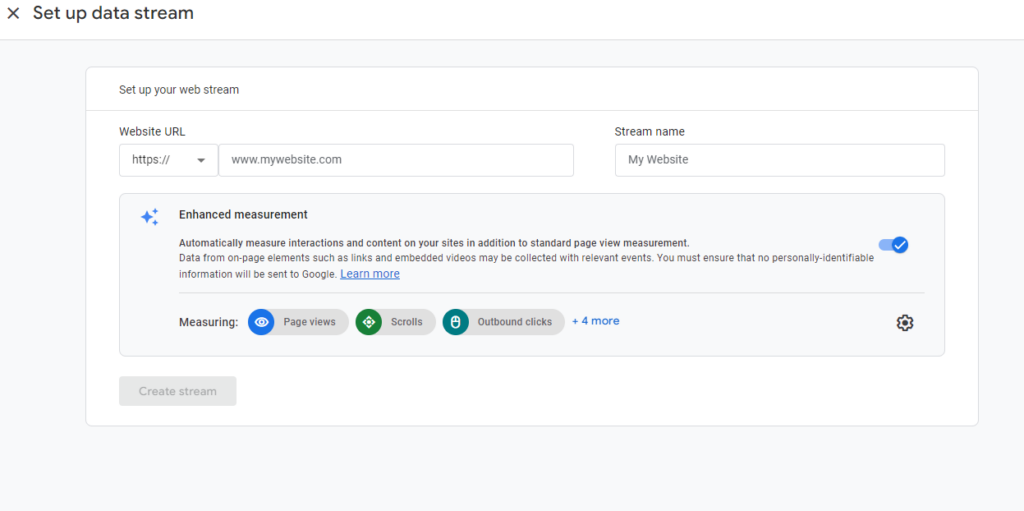
4- Choose the platform, aka where the data will be collected from.
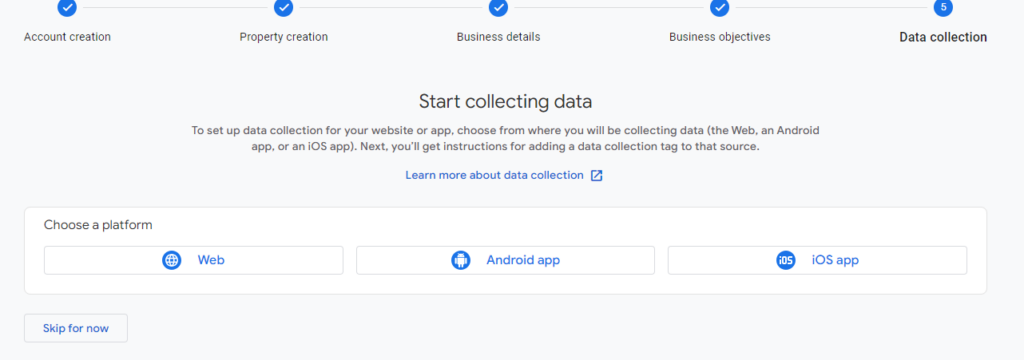
4.1-Copy and paste your site URL to connect it
4.1.2- Select the MonsterInsights Plugin from the list.
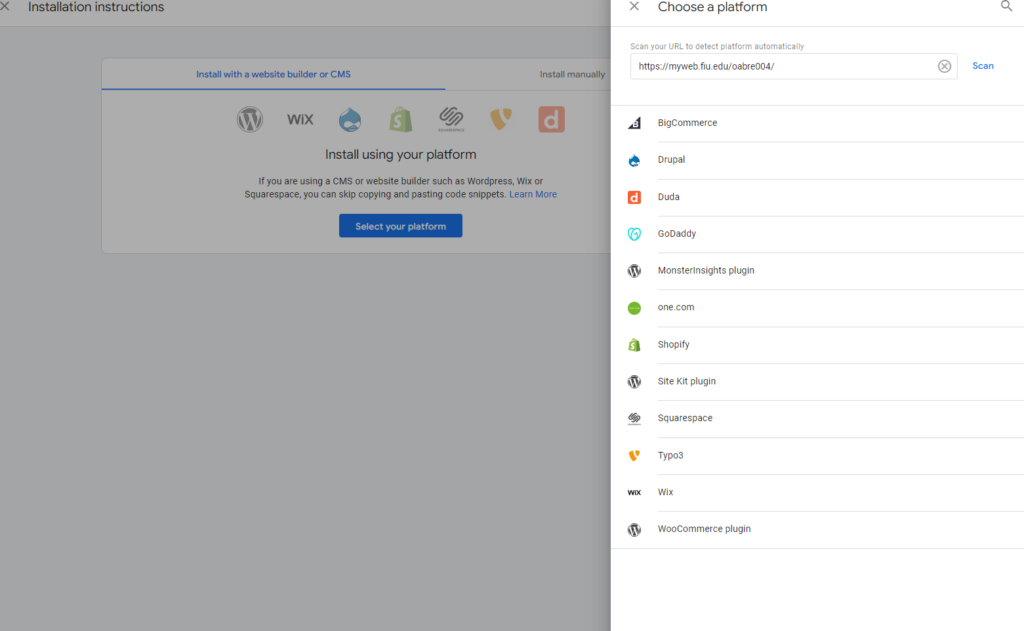
Please note that you will remain on the Google Analytics page once your site is connected and ready to collect data. Then, go back to your Dashboard.
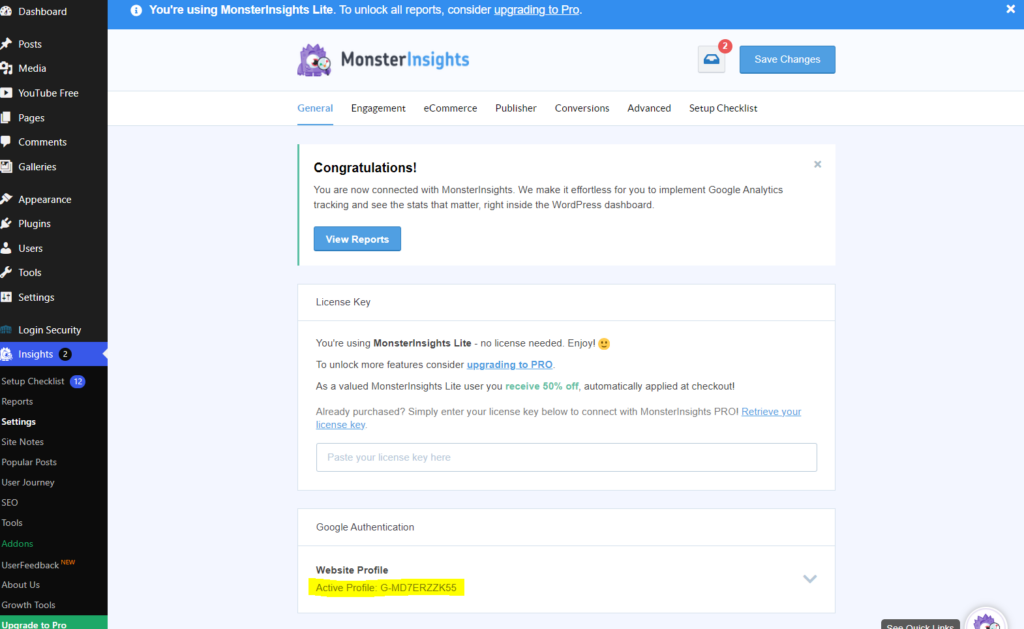
5-Confirm connection on your Dashboard Insights menu
6- Finalize the configuration according to your goals.

Notice Insights has been added to the top of your site.
7- Thrive!