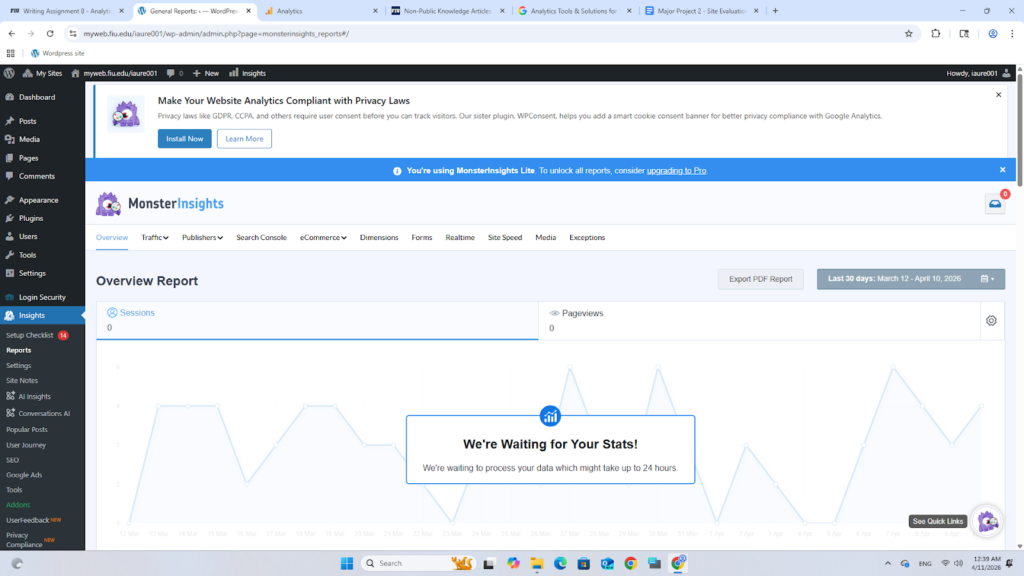
- Go to: https://marketingplatform.google.com/about/analytics/
- Make sure you are signed in with a Google account.
- Press “Get started today.”
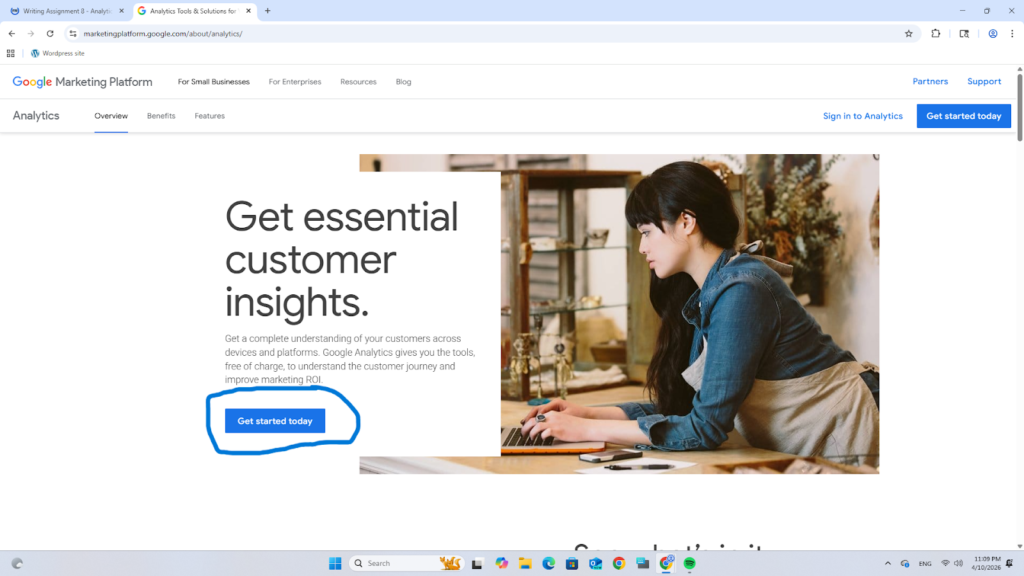
- Create your Account
- Create an “Account Name” for your Analytics
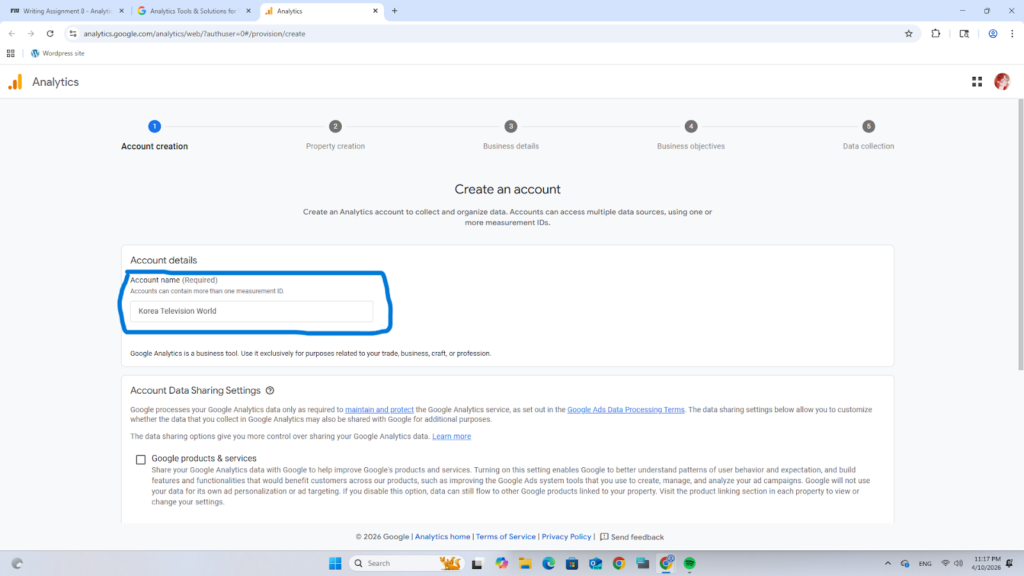
- Click whatever boxes you like and then press next.
- Create a Property and a Property name, and then press ‘Next’.
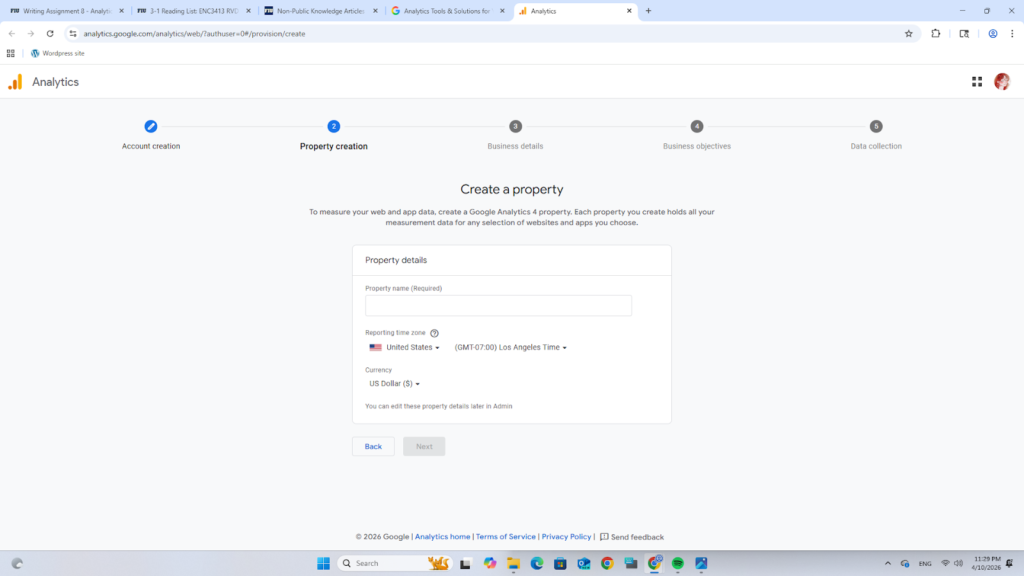
- Describe your Business
- Choose an Industry Category according to your website.
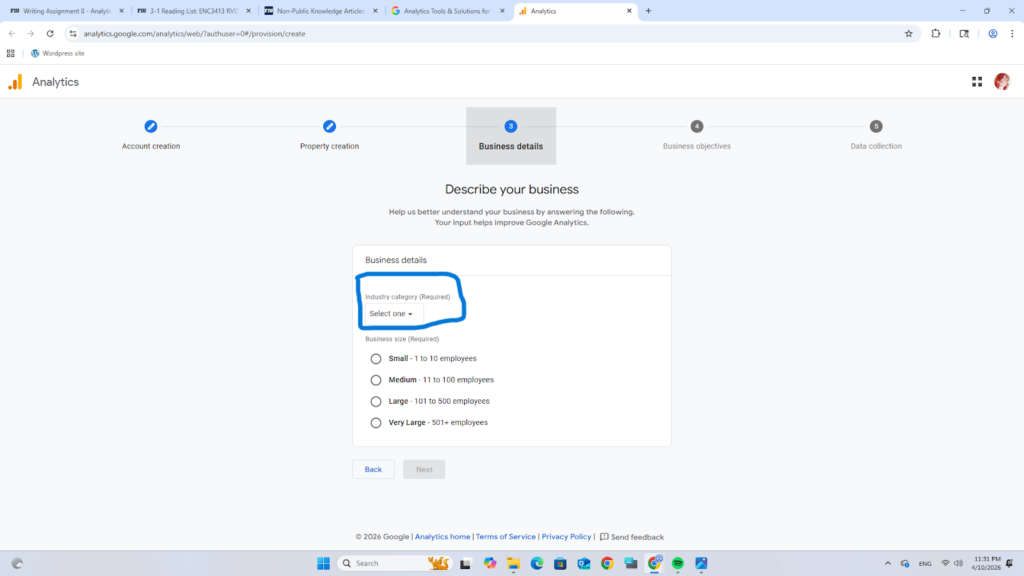
- Choose whatever size according to the website.
- Press ‘Next’
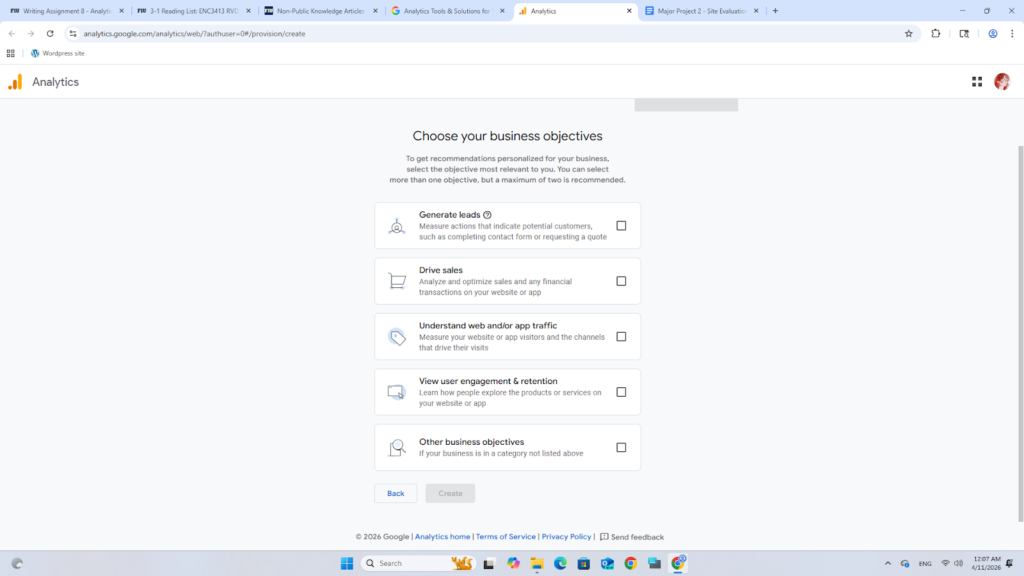
9. Choose whatever Business objectives you want to track, then press ‘Create.’
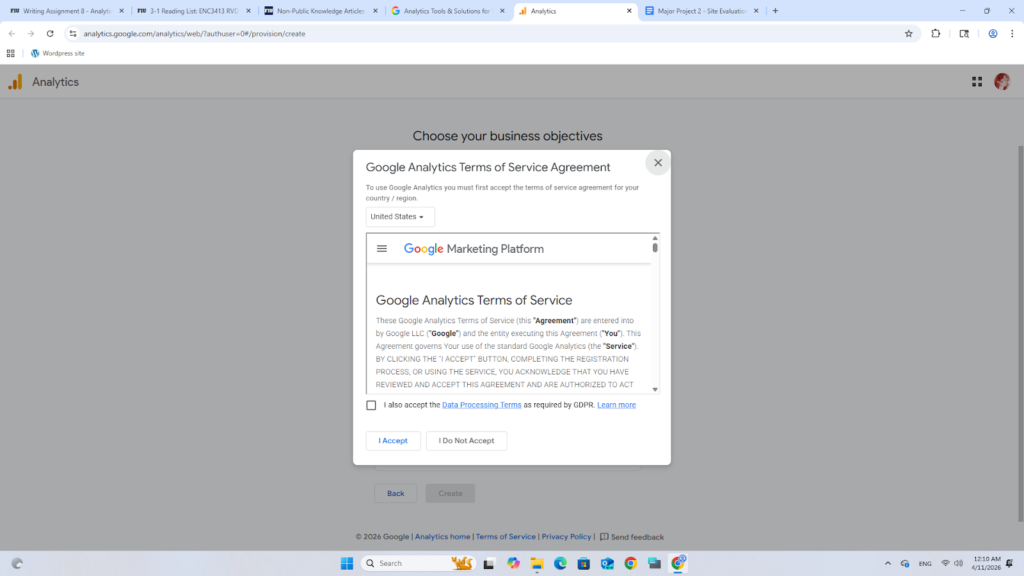
- Agree to Terms and Services
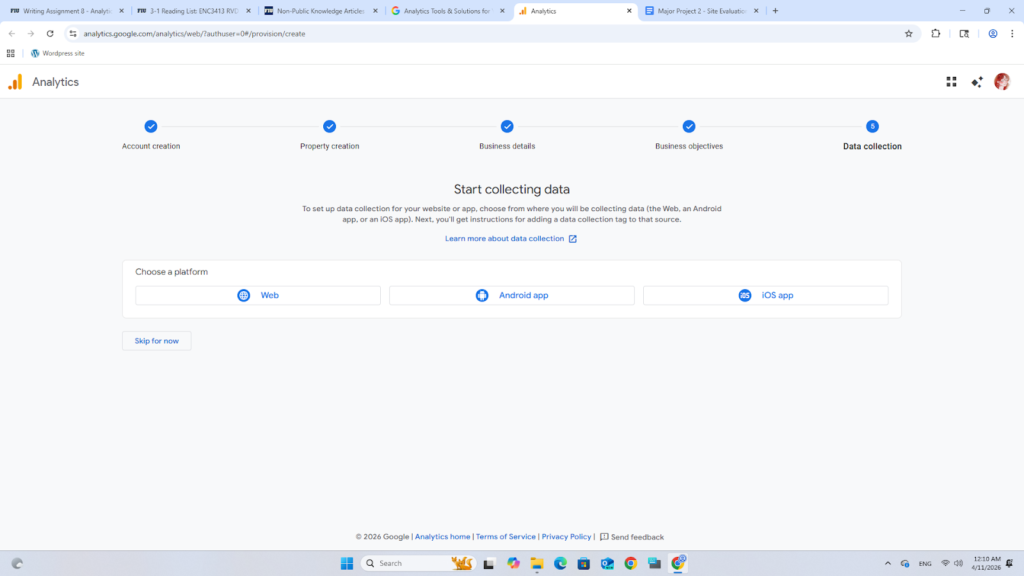
- Choose ‘Web’
- Enter the FIU MyWeb address with this template: https://myweb.fiu.edu/your-username and create a Stream name
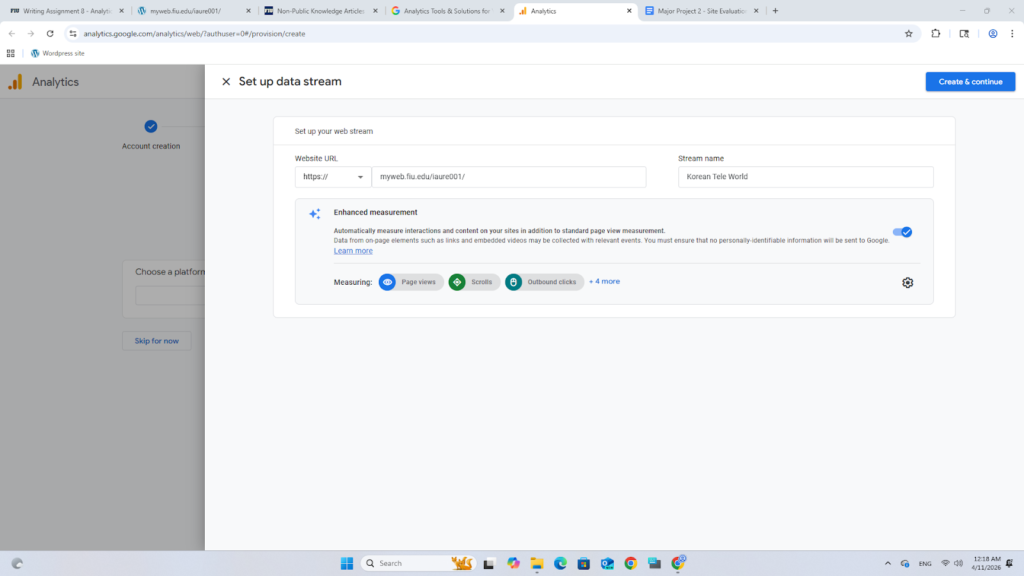
- Press Create & Continue
- Then, set up a Google Tag
- Install it manually
- Press ‘Plug-in’ tab
- Go to your WordPress website
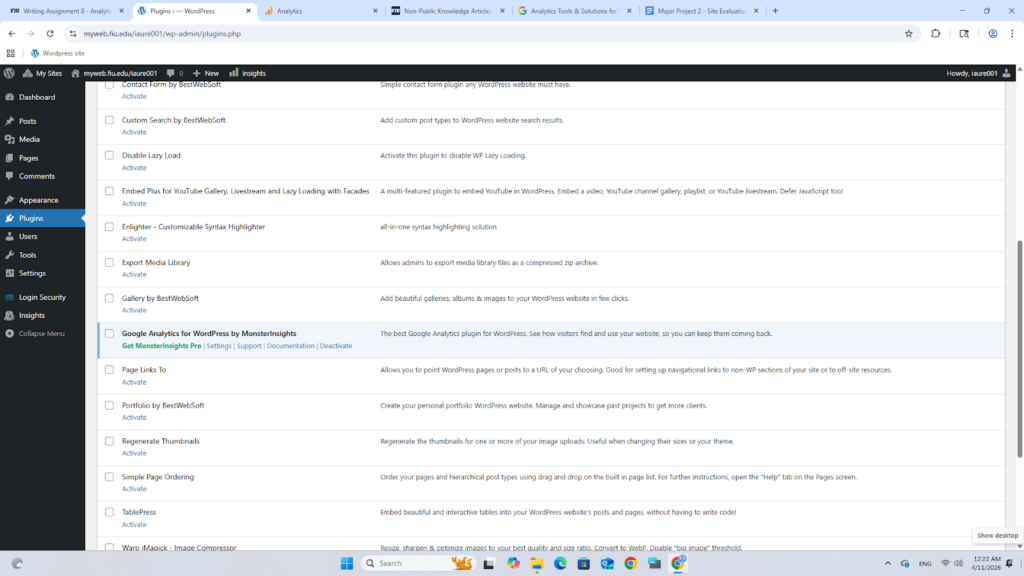
- Activate ‘Google Analytics for WordPress by MonsterInsights’
- Choose what type of website you have
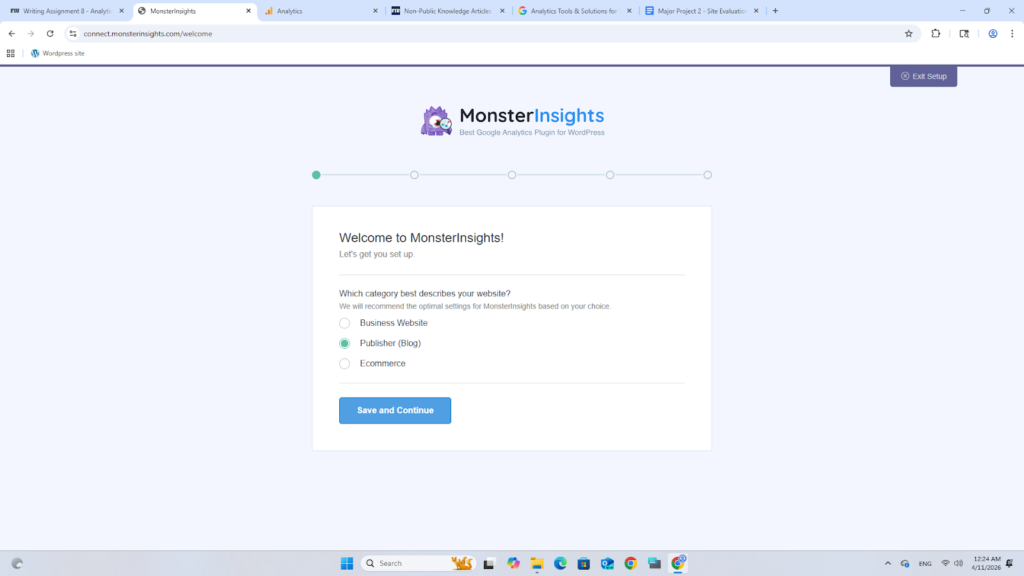
- Then, “Connect MonsterInsights’ and choose a Google account to connect it to the Google account you used earlier
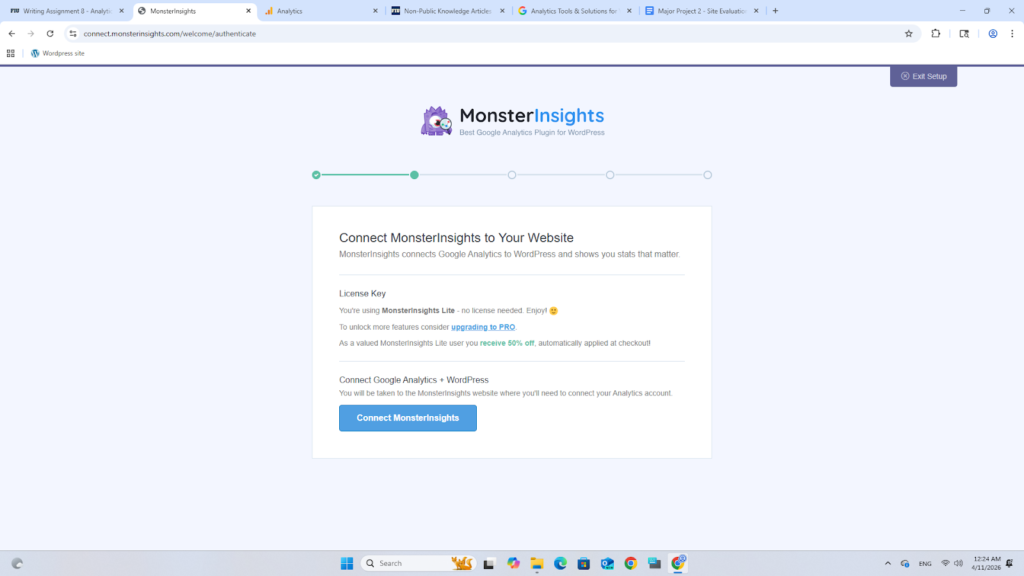
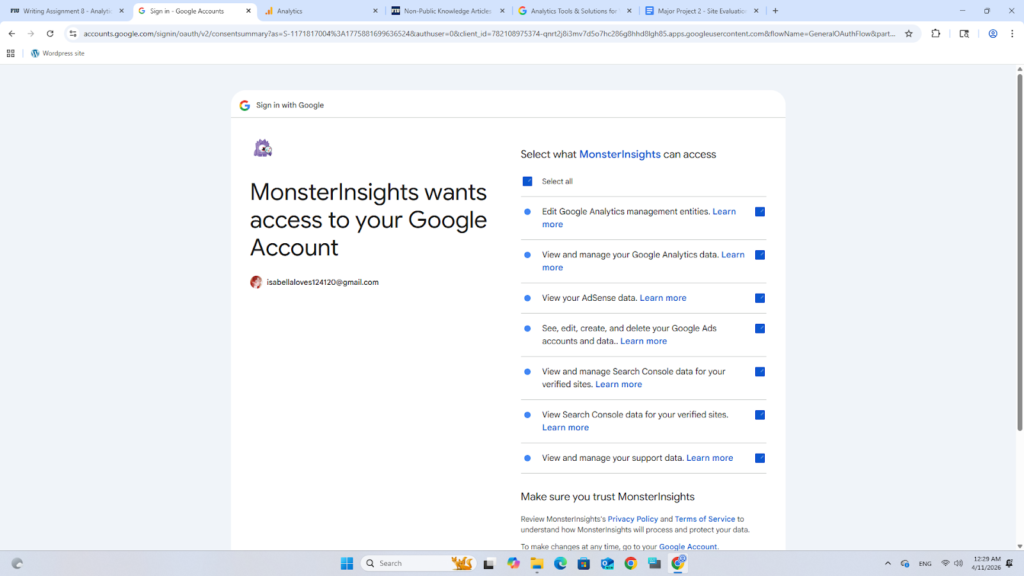
- Make sure to ‘Select all’ boxes for the setup to work
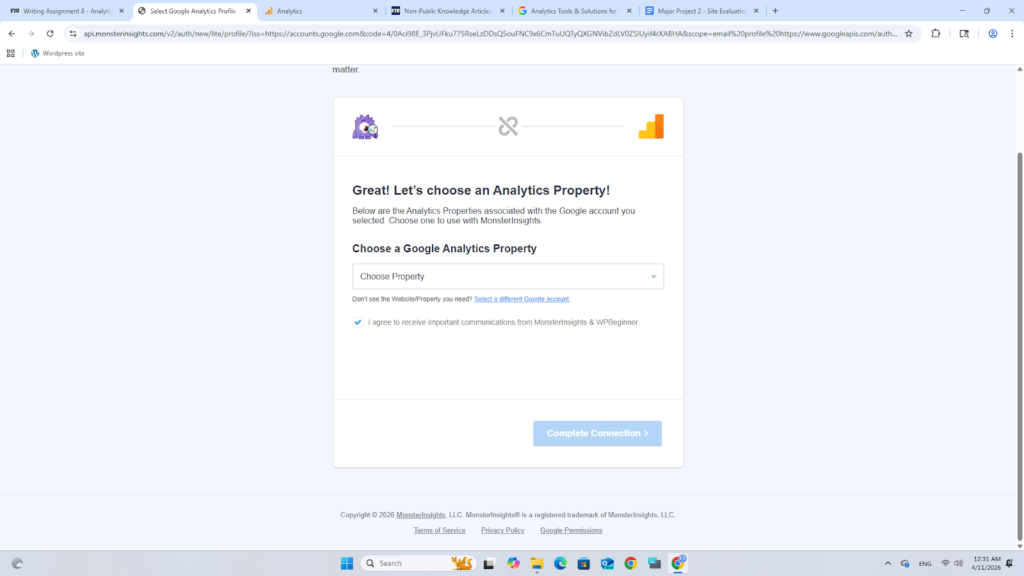
- Choose the Property we made earlier, then ‘Complete Connection.’
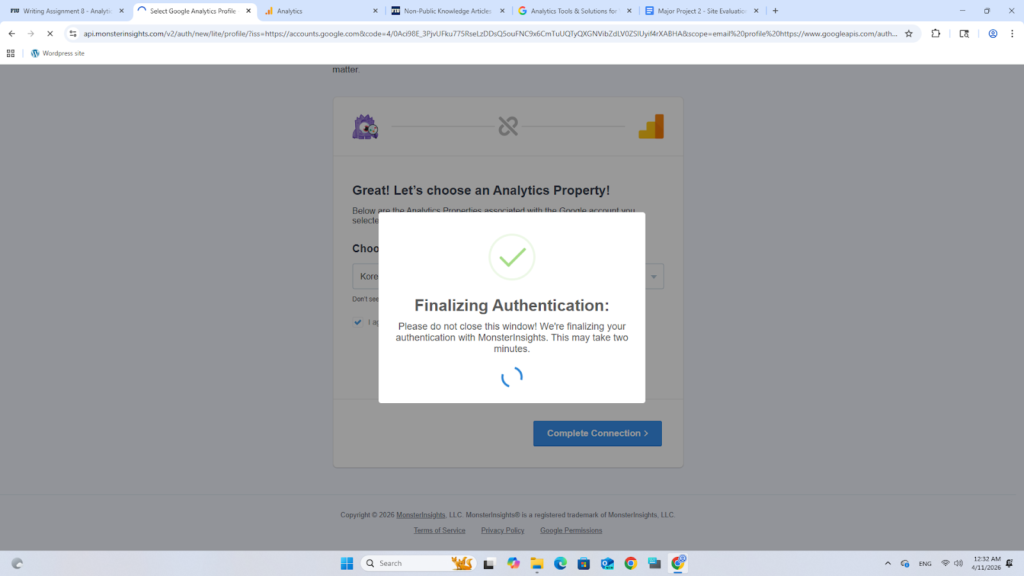
- Wait for the Authentication to finish
16. Look over the recommended settings and change as needed, and press ‘Save and Continue.’
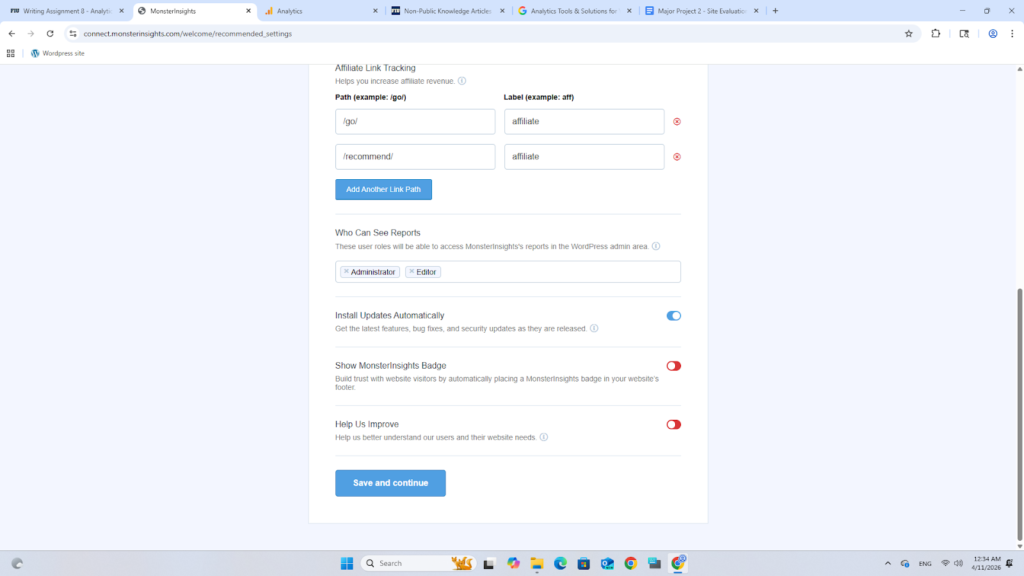
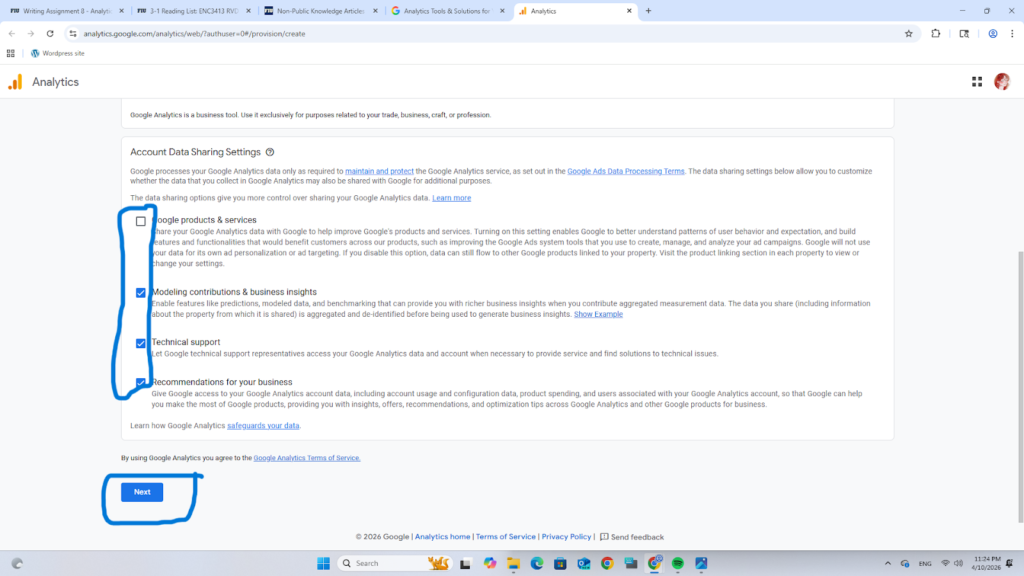
- Continue until you reach this page and upgrade if you want, otherwise continue
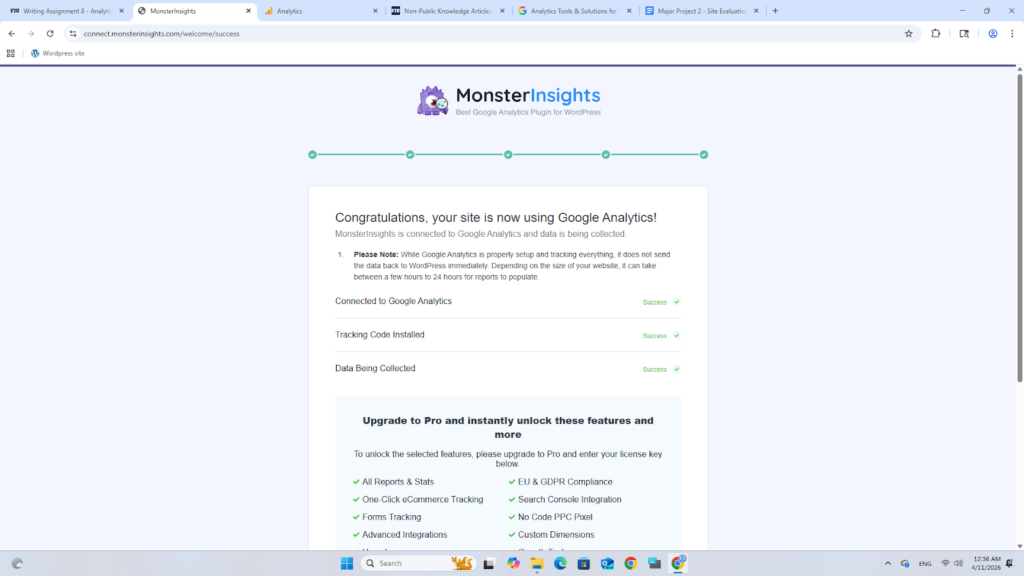
- Then you’re done, and you are now tracking your Analytics for your FIU MyWeb page.